How to import your budget into Hemma
You have an Excel file with your construction budget. Maybe from your architect, your contractor, or one you built yourself. Let's get that into Hemma. The import wizard walks you through it step by step, with Hemma's AI helping along the way.
01What you need
An Excel file (.xlsx or .xls) or a CSV with your construction budget. That's it.
Most users import their architect's cost estimate or a spreadsheet they built themselves. Both work. Your columns don't need specific names. Hemma figures them out automatically.
The maximum file size is 10 MB. For most construction budgets, that's more than enough.
Got multiple sheets in your Excel? No problem. Hemma lets you pick the right one along the way.
02How the import works
Go to Budget → Import from Excel. The wizard walks you through it:
- Upload. Drop your file or click to select it. Hemma accepts .xlsx, .xls, and .csv.
- Pick a sheet. Multiple sheets in your Excel? Pick the one with your budget. Only one sheet? You'll skip this step.
- Map your columns. Hemma reads your column headers and suggests mappings: code, name, description, quantity, unit, estimated, budgeted. Check the suggestions and adjust where needed.
- Confirm the structure. Hemma detects your hierarchy: categories, subcategories, and line items. Think: chapter 1, article 1.2, item 1.2.3. You can correct the result if it's off.
- Review and import. You see a preview of your budget tree, with any warnings highlighted. Confirm, and Hemma writes your budget. Once it's in, you can map invoices and quotes against it.
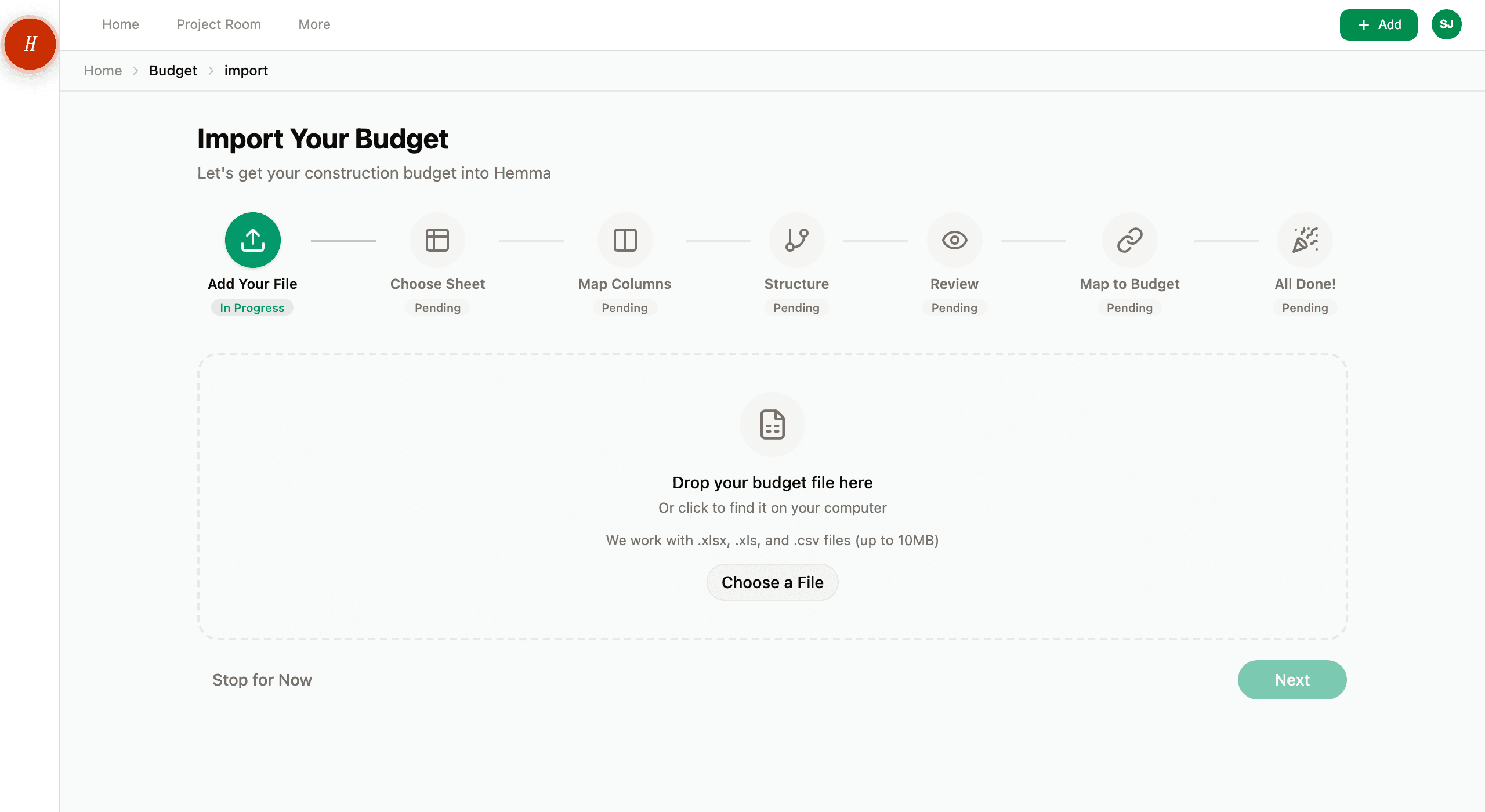
You don't have to get everything perfect in one go. After import, you can always adjust items, amounts, and structure on the Budget page.
03Stopping halfway
You can leave the wizard at any point with Stop for Now. Hemma asks you to confirm, because stopping removes the file you uploaded, and takes you back to the Budget page.
If you close the page without stopping, your import stays open. The next time you go to Import from Excel, Hemma asks whether you want to pick up where you left off or start a new import. Starting a new import removes the open one, after you confirm. Anyone on the project can pick up or remove an open import, and Hemma shows who started it.
On the review step, Back to mapping takes you back to the column step with your file's columns and your earlier choices still filled in. Nothing is read again.
04What AI does during import
Column mapping. Hemma reads your column headers and recognises which column is the code, which is the name, the estimated amount, and so on. You see the suggestions and can override them. You always have the final say.
Structure detection. Hemma analyses your codes and indentation to understand the hierarchy of your budget. For example: 1.2.3 = chapter 1, article 2, item 3. If your budget uses a different structure, you can indicate that.
Both steps are suggestions. Hemma helps, but you decide. If the AI gets it wrong, you correct it with a few clicks.
05What happens after import
Your budget is live. And from now on, something fundamental changes in how Hemma works for you:
- Every invoice and quote you upload or forward is automatically linked to a budget line.
- The Budget page switches everyone on the project to the Full budget view. Before the import, an early-stage project shows a lighter overview; the toggle at the top lets anyone switch back if they prefer it.
- The Budget page shows estimated vs. budgeted vs. quoted vs. invoiced, in real time.
- Signal colours tell you at a glance what's on track and what needs attention.
- Your partner or project collaborator sees the same numbers, always up to date, without you having to forward anything.
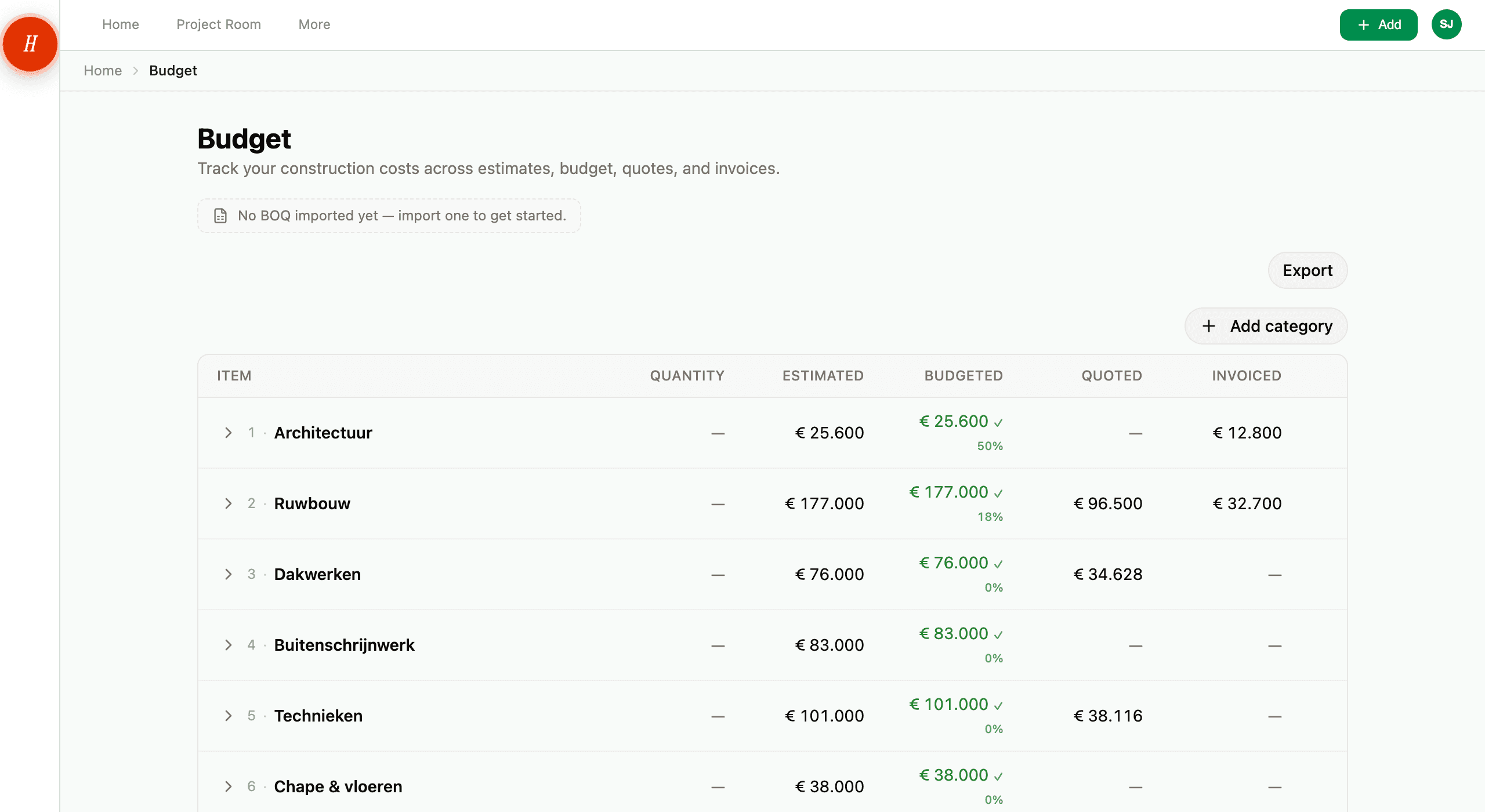
In short: your budget becomes a living document. No more static spreadsheet. A real-time overview of your entire construction project.
06No budget file? No problem
Not everyone starts with a ready-made Excel file. That's fine. Add categories and items manually on the Budget page. Start with the big categories (shell construction, technical installations, finishing) and fill in as your project progresses.
You can always import later. Hemma will still link all previously uploaded invoices and quotes to your budget lines.
Even a rough budget with just the big categories and estimated amounts is already valuable. You can refine it later.