Plannen annoteren en ter plekke bespreken
Je zag iets op een plan. Een deur die de verkeerde kant opdraait. Een stopcontact dat ontbreekt in de keuken. Een afmeting die niet klopt. Tot nu toe was je enige optie een screenshot in WhatsApp met een onhandige rode pijl erop, en een week later weet niemand nog welk plan, welke pagina, of welke versie. Annotaties lossen dat op. De tekening, de vraag, en het antwoord blijven samen op één plek.
01Open een plan en begin met annoteren
Elke PDF of afbeelding die je als plan hebt geüpload, kun je annoteren. Open het plan vanuit je project, en je ziet bovenaan de viewer een knop Annoteren. Tik erop om naar bewerkingsmodus te gaan. De werkbalk verschijnt en je kunt beginnen tekenen.
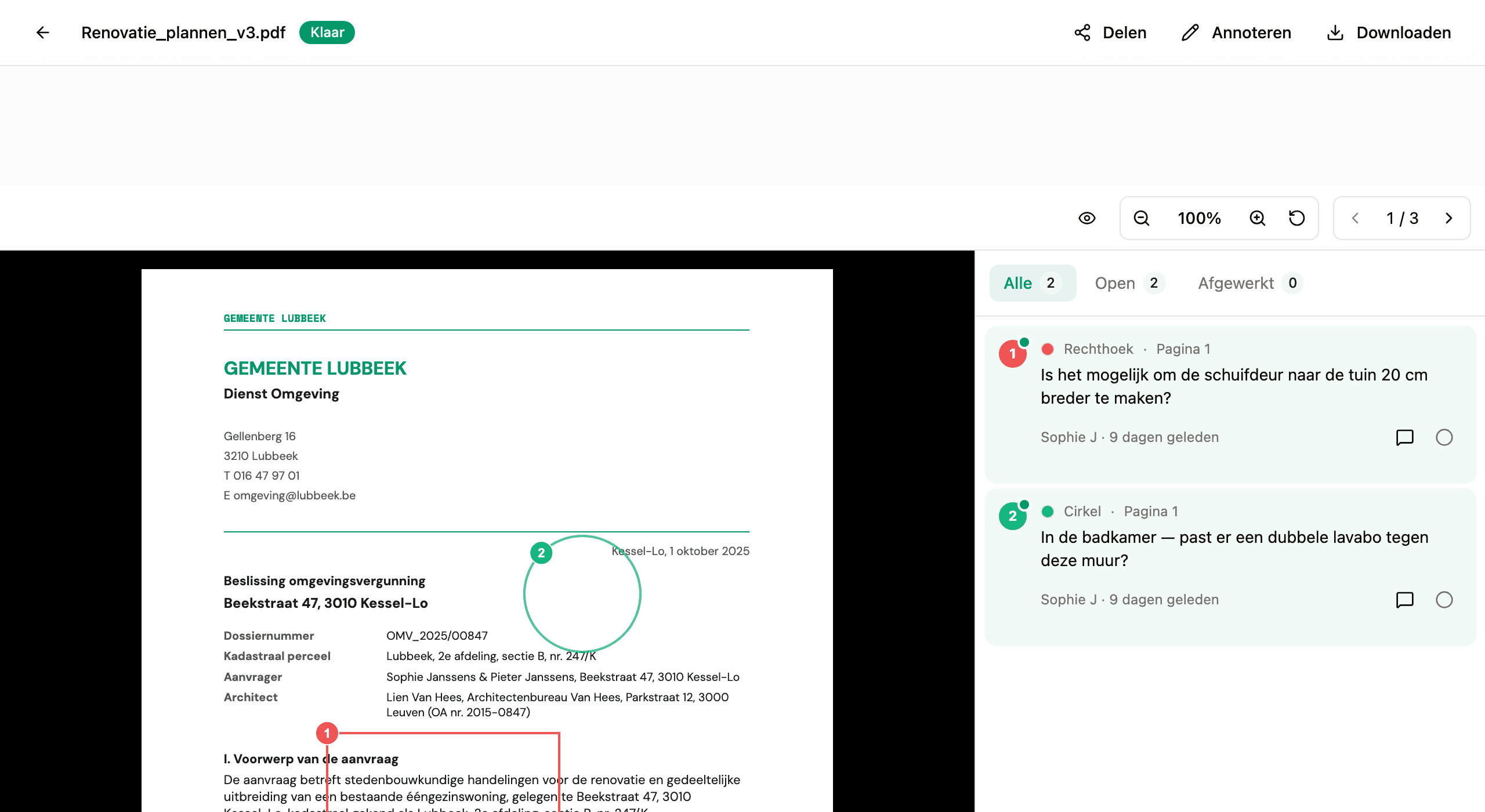
Tik op Stop annoteren als je klaar bent. Je markeringen worden onderweg opgeslagen. Er is geen aparte opslagstap.
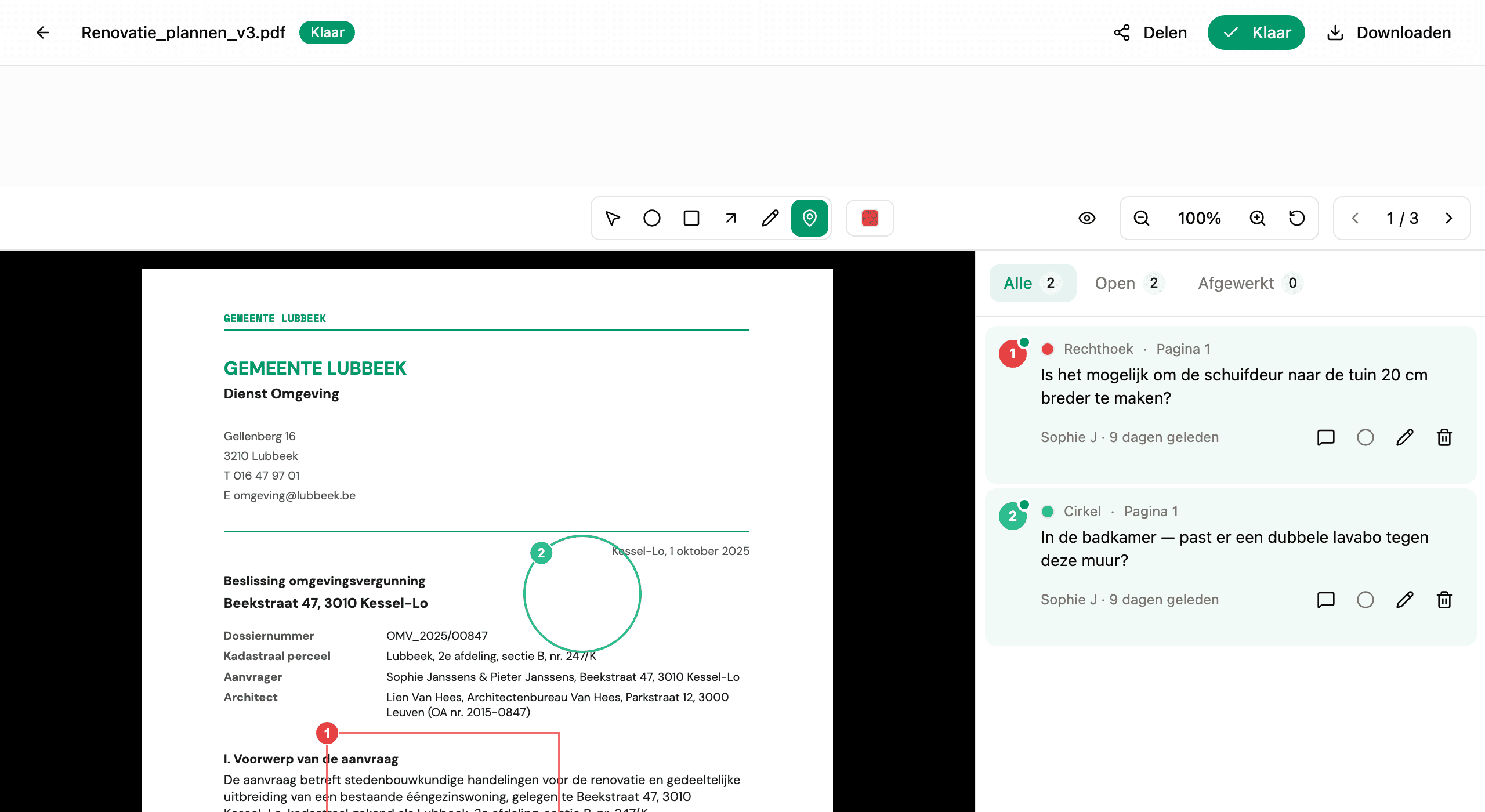
02De vijf gereedschappen
Hemma geeft je vijf manieren om een plan te markeren. Kies wat past bij wat je wilt zeggen.
- Pin. Plaats één punt op een plek. Ideaal voor "kijk hier"-momenten en korte vragen.
- Cirkel. Trek een cirkel rond een zone. Goed voor "deze hele hoek" of "deze toestel".
- Rechthoek. Kader een gebied af met rechte lijnen. Handig voor kamers, panelen, of alles met rechte randen.
- Pijl. Wijs van het ene naar het andere ding. Gebruik dit als je een verband wilt tonen, "dit hoort bij dat".
- Vrije hand. Schets vrij. Het beste als niets anders past: een curve, een lijn die je wilt hertekenen, een vorm die je wilt voorstellen.
Bij elk gereedschap hoort een palet van acht kleuren. De meeste mensen gebruiken rood voor problemen, groen voor wat in orde is, en een derde kleur om bij elkaar horende wijzigingen te groeperen. Maar er is geen regel. Gebruik wat helpt om het overzichtelijk te houden.
03Voeg een notitie toe aan je markering
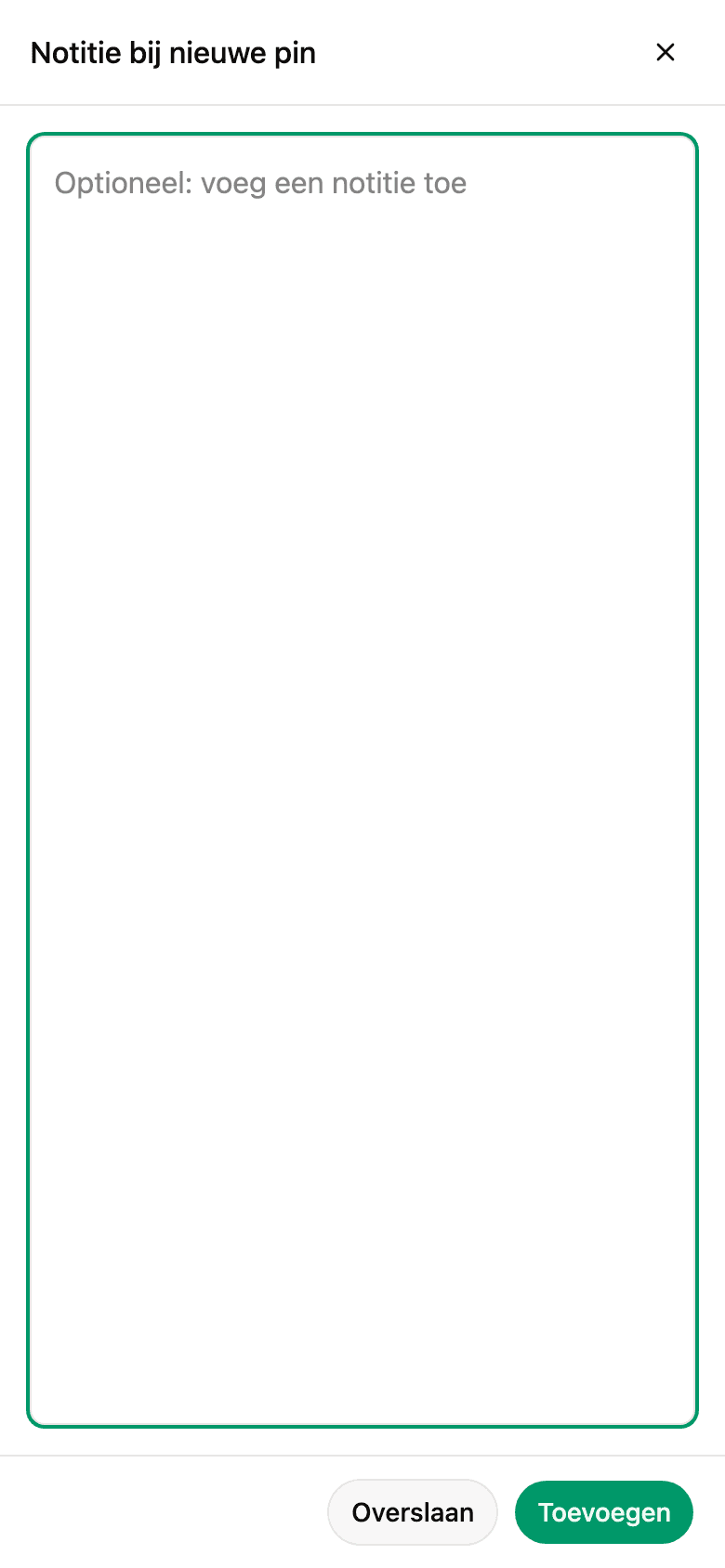
Na het tekenen vraagt Hemma of je een notitie wilt toevoegen. De notitie is optioneel. Soms zegt een cirkel genoeg op zichzelf. Maar als er een vraag, een afmeting of een beslissing is om te bespreken, schrijf het hier. De notitie blijft gekoppeld aan die exacte vorm, op die exacte pagina.
Korte notities werken beter dan lange. "Draait de deur de verkeerde kant op?" werkt beter dan een paragraaf. Het plan doet het zware werk. Jij hoeft enkel aan te wijzen.
04Reacties en afwerken
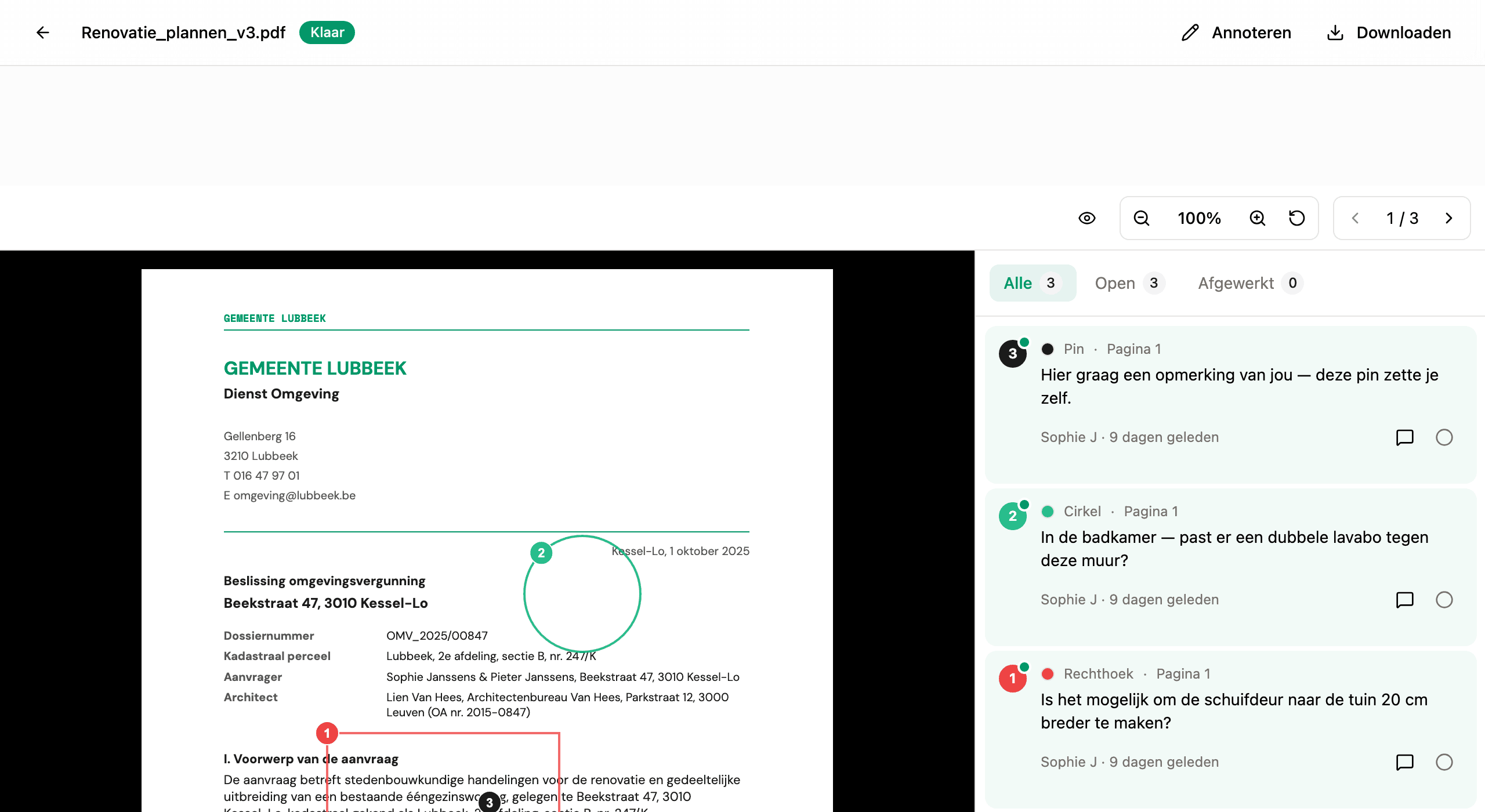
Bij elke annotatie hoort een gesprek. Iedereen met toegang tot het plan, zoals je partner of je architect, kan reageren, en nieuwe berichten verschijnen in de zijbalk met een melding voor ongelezen reacties. Het gesprek blijft pal naast de markering die het startte.
Als een vraag beantwoord is, een wijziging is gemaakt, of je iets gewoon niet meer hoeft op te volgen, markeer je de annotatie als Afgewerkt. Ze blijft zichtbaar op het plan, maar verdwijnt uit je openstaande lijst. Niets gaat verloren. Je kunt op elk moment heropenen.
05Op je telefoon
De volledige annotatie-ervaring werkt op mobiel. Tekenen doe je met je vinger, met twee vingers zoom je in en uit, en het opmerkingenveld opent op volledig scherm zodat je ruimte hebt om te typen. De gereedschappen en kleuren staan in een lade onderaan. Tik op de gereedschappenknop en kies wat je nodig hebt.
Een plan opent op de breedte van je scherm, zodat je het in één keer helemaal ziet. Knijp met twee vingers om in te zoomen, ook als je alleen maar kijkt, en tik op Passend om het hele plan terug te brengen.
Sta je op de werf en zie je iets, dan hoef je niet te wachten tot je terug aan je bureau zit. Open het plan, plaats een pin, schrijf de vraag, klaar.
06Wat annotaties niet zijn
Annotaties zijn geen redline-tool. Ze veranderen het plan zelf niet. De oorspronkelijke PDF of afbeelding blijft onaangeraakt. Zie ze als post-its bovenop de tekening. Het plan blijft de bron van waarheid; jouw markeringen zijn het gesprek eromheen.
Zien. Markeren. Bespreken. Afsluiten. Dat is de hele cyclus.