Mark up plans and talk about them in place
You spotted something on a plan. A door that opens the wrong way. A socket missing from the kitchen. A measurement that does not look right. Until now, your only option was a screenshot in WhatsApp with a clumsy red arrow drawn on top, and a week later, no one remembers which plan, which page, or which version. Annotations fix that. The drawing, the question, and the answer all live in the same place.
01Open a plan and start annotating
Any PDF or image you have uploaded as a plan can be annotated. Open it from your project. It opens at Fit, so you see the whole page, as white paper on a light grey background. At the top of the viewer is a switch with View and Comment. Press Comment and the drawing tools appear in the toolbar at the bottom of the plan, so you can start drawing.
Press View when you are done to go back to reading. Your markups are saved as you go. There is no separate save step.
To give the plan a name of your own, such as "Ground floor, rev. C", tap its name at the top of the viewer, type the new one and press Enter. An architect you shared the plan with sees your name too. Under the name, Hemma shows who sent the plan and how it came in, for example "Atelier Verbeke · plan · came in by email on 12 Oct". The original filename sits under This file at the bottom of the sidebar, together with when it was received and who it came from.
02The five tools
Hemma gives you five ways to mark up a plan. Pick whichever fits what you want to say.
- Pin. Drop a single point on a spot. Best for "look here" moments and quick questions.
- Circle. Draw around an area. Good for "this whole zone" or "this fixture".
- Rectangle. Frame a region with straight edges. Useful for rooms, panels, or anything boxy.
- Arrow. Point from one thing to another. Use it when you need to show a relationship, "this connects to that".
- Freehand. Sketch freely. Best when nothing else fits: a curve, a line you want to redraw, a shape you want to suggest.
Each tool comes with a colour palette of eight colours. Most people use red for problems, green for things that are fine, and a third colour to group changes that belong together. But there is no rule. Use whatever helps you keep things clear.
The same toolbar holds everything else: zoom out, zoom in, page arrows for a PDF with several pages, and the eye to hide or show the comments. The tools and the colour only show while you are commenting. The zoom label reads Fit while the whole plan is shown. Once you zoom, it shows the percentage; tap it to bring the plan back to Fit.
Choose a comment in the list and the plan zooms to its spot, with its number ringed. Whole plan, at the top left of the plan, takes you back to the whole drawing. The numbers on the plan are always dark, whatever colour the shape was drawn in, and turn grey once a comment is done.
03Add a note to your markup
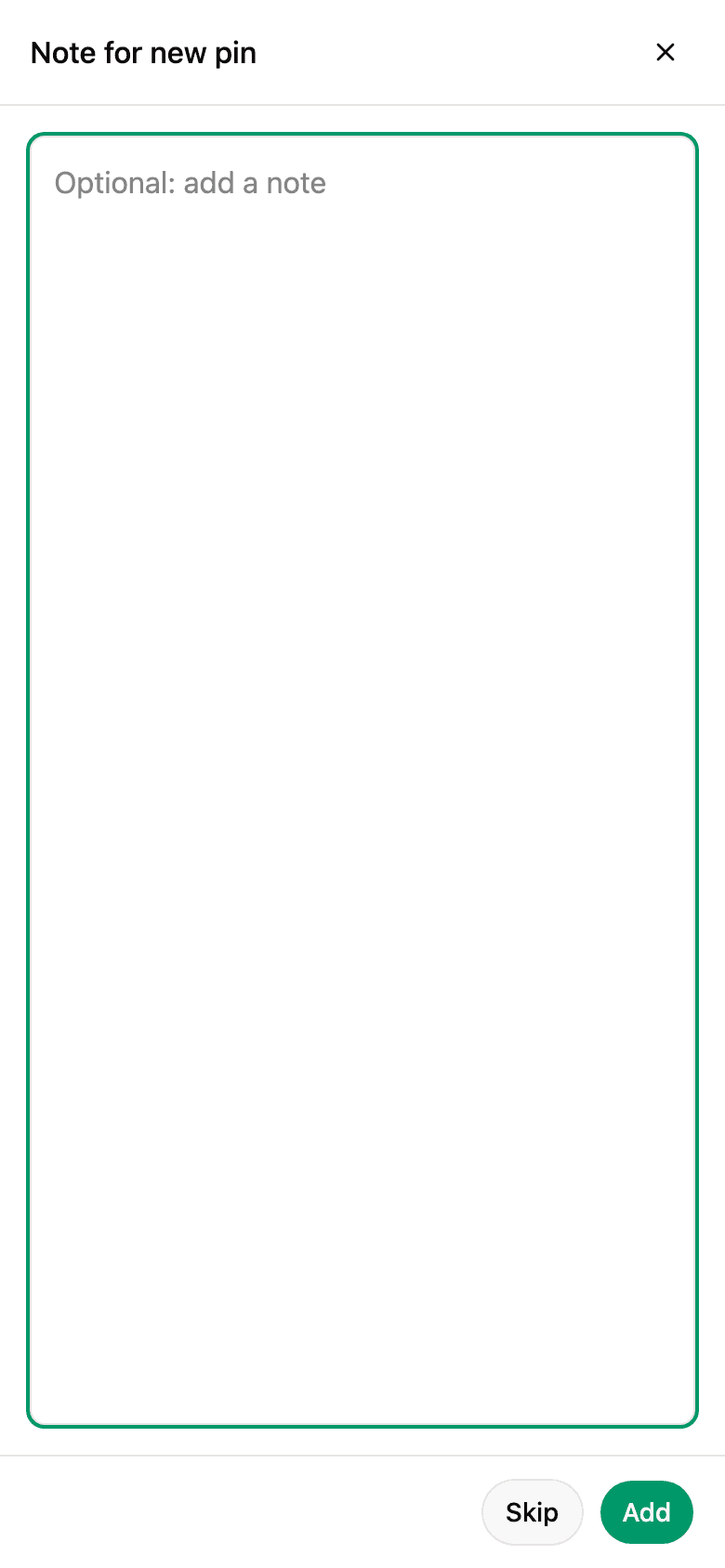
After you draw, Hemma asks if you want to add a note. The note is optional. Sometimes a circle says enough on its own. But if there is a question, a measurement, or a decision to discuss, write it here. The note stays attached to that exact shape, on that exact page.
Short notes work better than long ones. "Door swings the wrong way?" beats a paragraph. The plan does the heavy lifting. You just point at things.
04Comment on the whole plan
Not every remark belongs to one spot. "This works for us", "Can we see a version with the stairs on the other side?", "Please use the latest facade": those are about the plan as a whole. In the sidebar, below the comments on spots, under About the whole plan, tap Leave a note for the whole plan…, write it, and post it. You do not need to switch to Comment or draw anything first.
A comment on the whole plan works like any other: your partner or your architect gets the same email, can reply, and anyone can mark it as done. It carries a speech bubble instead of a number, because there is nothing on the drawing to point at. Changed your mind? You can edit or delete your own comment right there, without switching to Comment.
05Replies and resolving
Every annotation can hold a thread of replies. Anyone with access to the plan, like your partner or your architect, can press Reply on a card, and you will see new messages appear in the sidebar with an unread indicator. The conversation stays right next to the markup that started it.
When a question is answered, a change is made, or you simply do not need to track something anymore, press Mark as done on its card. It stays visible on the plan, but moves from Open to Done in the list, which always opens on Open. Nothing is lost. Press Reopen any time to bring it back.
06On your phone
The full annotation experience works on mobile. Drawing uses your finger, two-finger pinch zooms in and out, and the comment input opens full-screen so you have room to type. The tools and colours live in a bottom sheet. Tap Comment (the pencil), then Open tools beside the zoom, and pick what you need. The tools only show while you are commenting.
A plan opens fit to the width of your screen, so you see all of it at once. Under it sits a small pill with −, Fit and +. Pinch with two fingers or use + to zoom in, also when you are only reading. Once you zoom, the pill shows the percentage; tap it to bring the whole plan back.
The comments rest on one line at the bottom of the plan: the first open comment and how many are open. Tap that line to open the list, with Open and Done, the notes About the whole plan and This file. Tap the arrow at its top to fold it away again.
Tap a comment in that list and the plan zooms to its spot. The sheet then shows just that comment, as "Comment 1 of 2 open", with arrows to the previous and next open one. Whole plan takes you back.
If you are on site and you spot something, you do not need to wait until you are back at your desk. Open the plan, drop a pin, write the question, done.
07What annotations are not
Annotations are not a redline tool. They do not change the plan itself. The original PDF or image stays untouched. Think of them as sticky notes on top of the drawing. The plan stays the source of truth; your markups are the conversation around it.
Spot it. Mark it. Discuss it. Resolve it. That is the whole loop.