I can't find a document I uploaded
01What you're seeing
You uploaded or forwarded a document — maybe yesterday, maybe weeks ago — and it is not showing up on the Files page. You scroll, you search, and nothing matches.
02What you're seeing
You uploaded or forwarded a document — maybe yesterday, maybe weeks ago — and it is not showing up on the Files page. You scroll, you search, and nothing matches.
03Most likely cause
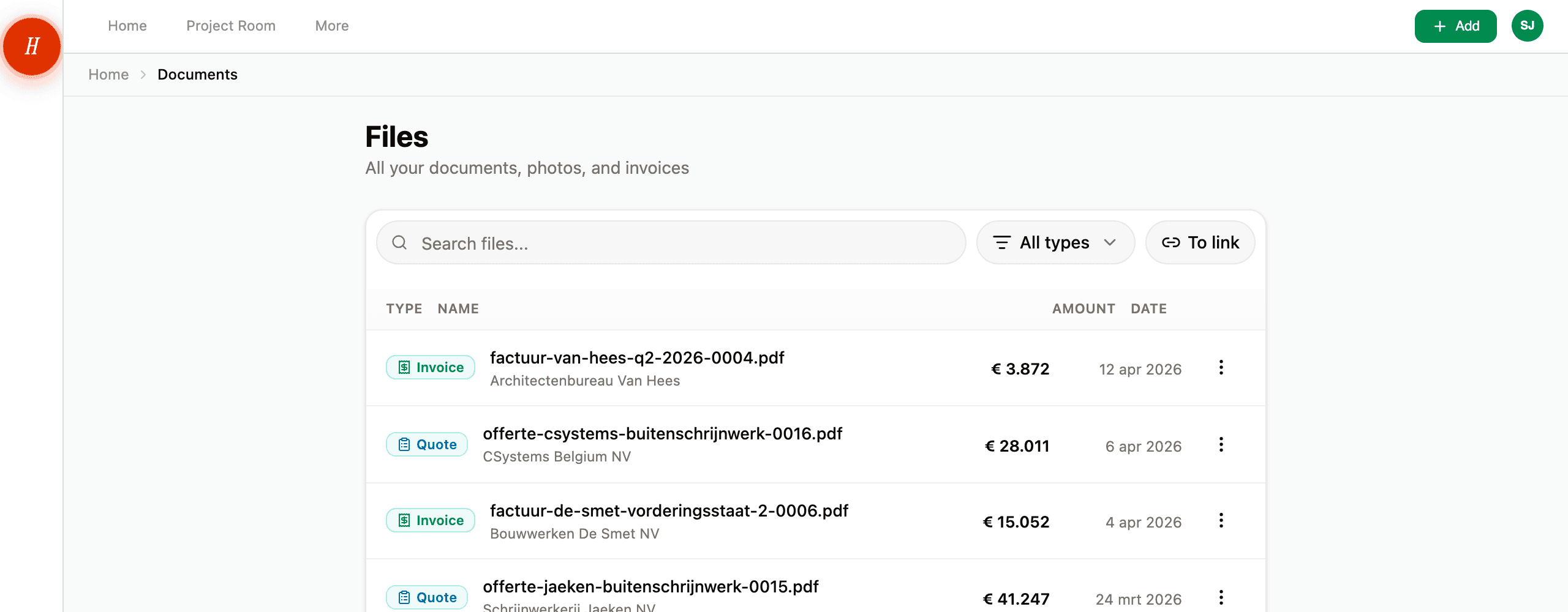
A filter is hiding it. The Files page has a search field and one filter button, and they combine. The filter holds two choices: what to show (All documents, To link or To check) and which type. If either is set, or there is text in the search, you only see a slice of your documents. The filter button names what it is showing, so a button that reads anything other than All types is a filtered list.
The fix: Clear them. Empty the search field. Open the filter and pick All documents under Show and All types under Type. Now look again. If the document is there, you know which filter was hiding it.
If the list is not filtered, the document may simply be further down. Rows are grouped by the month they arrived and only the most recent ones load first: tap Show earlier documents at the bottom to bring in older months.
04Other things to check
-
The sender is sitting in the waiting room. Open Settings → Who Hemma reads mail from and look under the Unknown filter. If the email you forwarded came from a sender Hemma had never seen, the message and its attachments are held there until you approve. See approving or rejecting a sender.
-
The sender was rejected. Same place — Settings → Who Hemma reads mail from, under Rejected. Anyone you previously rejected has their messages quarantined for seven days, then deleted. If you rejected by mistake within the last week, Restore them and the messages come back.
-
The attachment was filtered. Hemma only processes PDFs and supported image types (JPEG, PNG, HEIC, WebP). Spreadsheets, ZIP files, and Word documents do not become documents in your project. Open the message in Messages and choose Show details to see exactly which attachments were processed and which were skipped, and why. See file size, file types, and what's scanned.
-
The file was over 10 MB. Same place — message detail page lists the rejection reason. Ask the sender to compress and re-send.
-
The document is a duplicate. Hemma deduplicates aggressively: same Message-ID, same content hash, or same body+sender within a day all collapse to the original. The duplicate is kept but parked behind the original, so it does not get its own row in Files. If it arrived by email, open the message in Messages and choose Show details: the attachment is listed there with a Duplicate label and takes you to the original in one click. Or just search by the contractor name.
-
The email was malicious or flagged as phishing. Hemma drops messages flagged as phishing or prompt-injection before they ever reach the senders list. They do not appear in your project at all. If a real contractor's email is being dropped this way (rare, but possible), email hello@gethemma.app with the contractor's address.
-
You are looking at the wrong project. If you are part of more than one project, click the project name at the top of the sidebar and check which project you are in under Switch project (on your phone, open Places instead). Documents only belong to the project they were uploaded into — there is no global view.
-
The document is still processing. Newly arrived documents take about thirty seconds to process. Refresh the page.
05If none of this worked
If you have walked the list above and the document is genuinely not anywhere — not in Files, not in Settings → Who Hemma reads mail from, not on the message detail page — email hello@gethemma.app with:
- The approximate date and time you uploaded or forwarded the document.
- The sender email address (if it came in by forwarding).
- The contractor name and amount, if it is an invoice or quote.
- A screenshot of your Inbox showing the message you forwarded, if applicable.
We can trace it from there.