Set up forwarding in Outlook
Outlook calls them rules, not filters. The setup lives in the web client at outlook.com (or your Office 365 / Outlook 365 web mail). Once a rule exists, it runs on Microsoft's servers — your phone and desktop both pick up the result.
01Before you start
You need:
- Your project email address from Hemma. Find it under Settings → Project, in the Inbound Email field. Tap Copy.
- A desktop or laptop browser. The Outlook desktop app and the iPhone Outlook app can both create rules, but the web editor has the cleanest interface and is what these steps describe.
02Steps
1. Open the rules editor
In outlook.com or your Office 365 mail, click the gear icon in the top right → View all Outlook settings (the link at the bottom of the panel) → Mail → Rules.
2. Add a forwarding rule per contractor
Click Add new rule. Give the rule a name like "Forward Van Houten to Hemma".
- Add a condition: From → type the contractor's email address.
- Add an action: Forward to → type your Hemma project address.
- Optional: tick Stop processing more rules if you have a chain of rules and want this one to be the last for matching messages.
Save. The rule fires on every new message from that sender.
Repeat for each contractor, your architect, your municipality, your insurer.
3. Approve Outlook (or your contractors) in the senders list
The first time a forwarded email reaches Hemma, the sender Hemma sees is you — your Outlook address — because that is where the forward came from. You are auto-approved as a project member, so it lands fine.
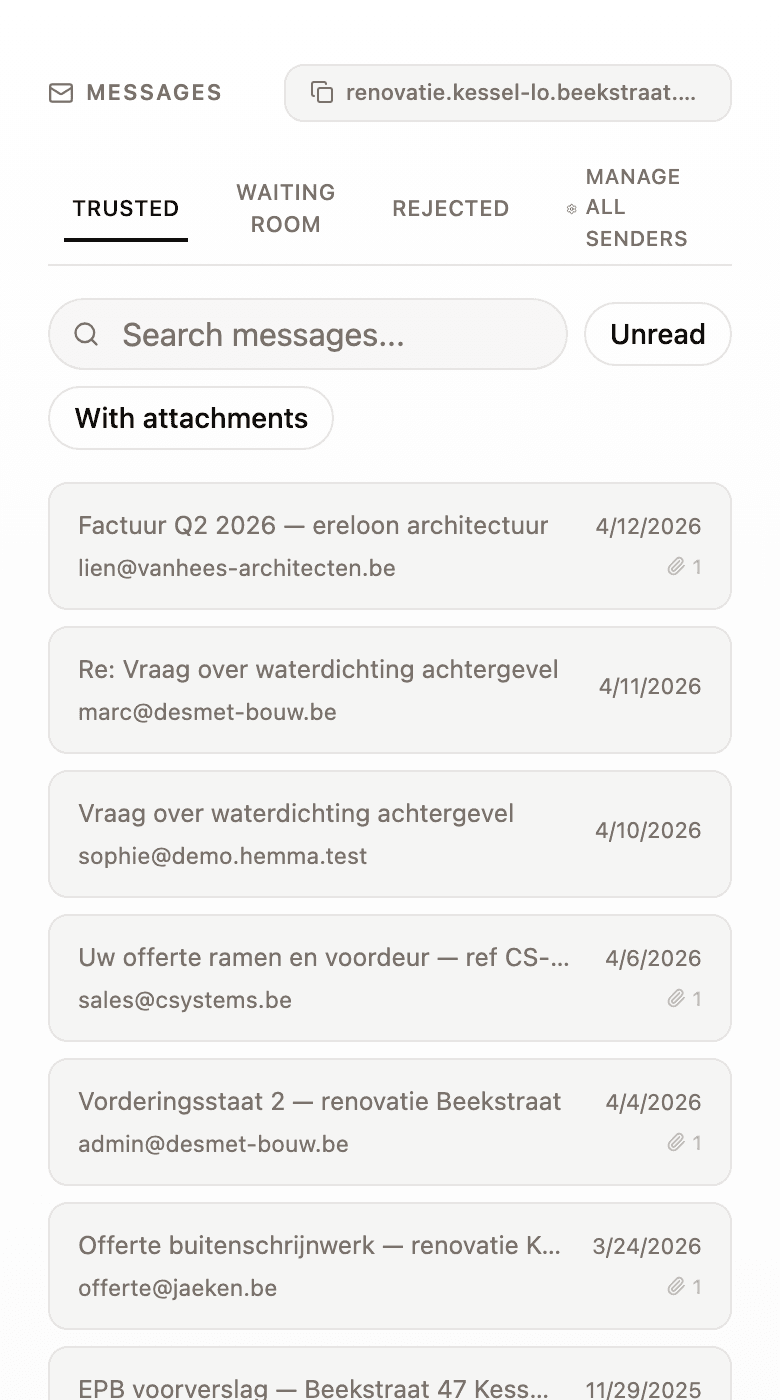
Some Outlook configurations rewrite the From header on forwards to look like the original sender instead. If that happens, the contractor's address will land in your Senders waiting room. Approve them once and future forwards just work.
4. Optional — backfill old emails
In Outlook on the web, search for the contractor's address, select all matching messages, click the three-dot menu, choose Forward, and send to your Hemma address. Repeat per contractor. Months of build history land in Hemma in one afternoon.
03Common questions
My company uses Microsoft Exchange — does this work? Yes. The web client for Exchange-hosted accounts has the same Rules editor, just at your company's URL instead of outlook.com.
Can the Outlook iPhone app create rules? Yes, in Settings → Email accounts → [your account] → Manage rules. Same shape, smaller screen.
Is there a way to forward attachments only? Not in Outlook itself. Hemma already filters out signature images, logos, and any non-PDF/non-image attachments — see file size, file types, and what's scanned. Forwarding the whole email is fine; the noise is dropped before it ever reaches your project.
Will my contractor see that I forwarded their email? No. Outlook rules are silent.
04What if it goes wrong
- The rule looks set up but Hemma never sees the email? See an email I forwarded didn't arrive.
- A contractor's first forward landed in your Senders waiting room? Approve them — see approving or rejecting a sender.