Annotation tools in detail
Marking up plans covered the basics. This article zooms in on the toolbar, the colours, the reply thread on every annotation, and what "resolved" actually does. Read it when you want to use annotations as a real conversation tool, not just a sticky note.
01The five tools, what each is for
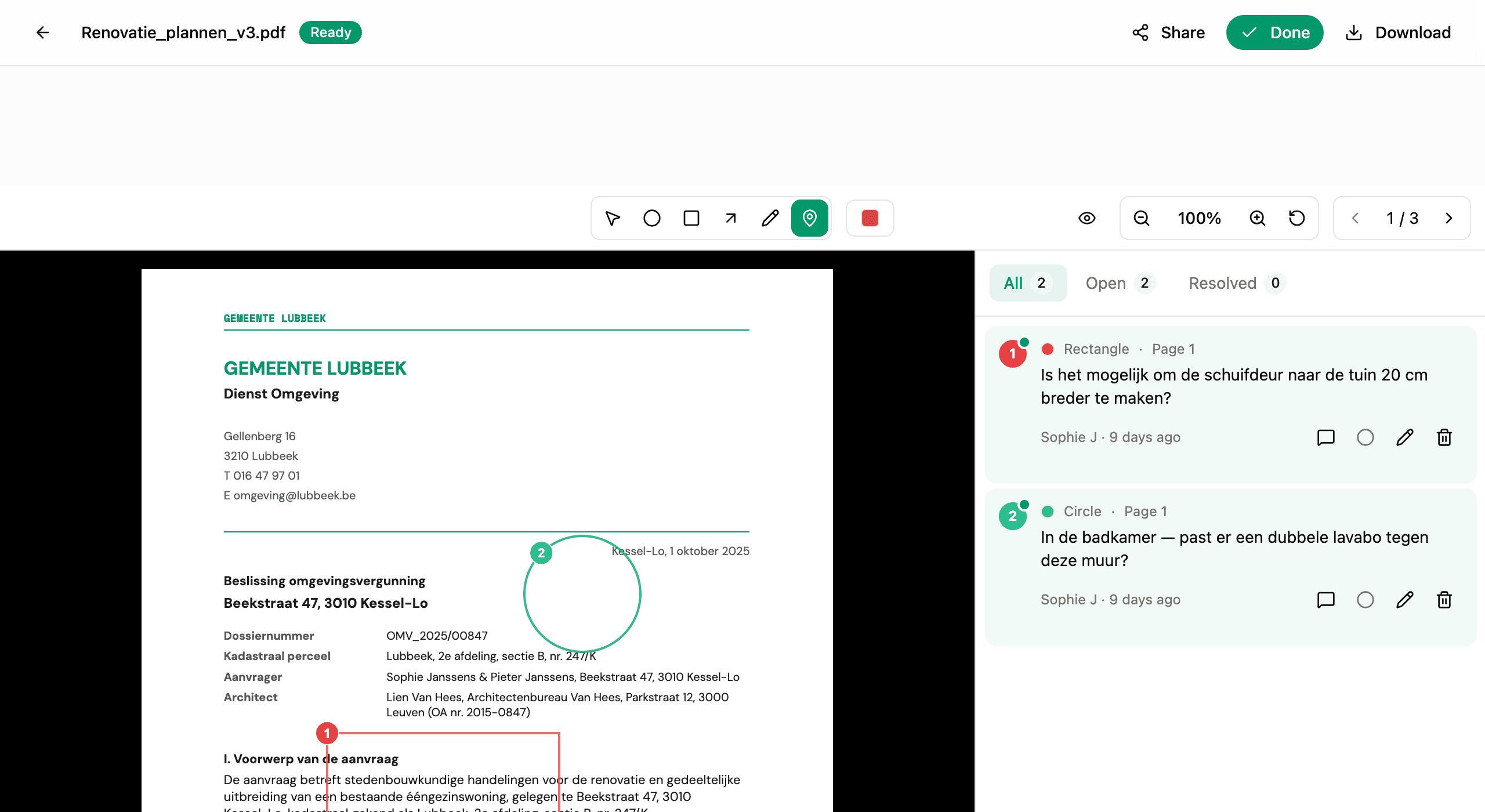
Every annotation starts with a shape. Pick the one that matches what you want to say:
- Pin. A single point on the plan. Best for "look here" — a missing socket, a question about a fixture, a spot you want someone to confirm.
- Circle. Draws around an area. Use it when the thing you mean is a zone, not a point.
- Rectangle. Frames a region with straight edges. Useful for rooms, panels, anything with hard boundaries.
- Arrow. Points from one thing to another. The right tool when the conversation is about a relationship — "this connects to that", "this is supposed to feed there".
- Freehand. Draws what you draw. The escape hatch for shapes none of the others cover: a curve, a line you want to redraw, a route through a space.
The toolbar is at the top of the viewer in Annotate mode. Pick a tool, draw, and Hemma drops you into the comment composer for that annotation.
02The colour palette
Eight colours: black, white, red, blue, green, yellow, orange, purple. Red is the default — it stands out against most plan linework and reads as "this needs attention".
Hemma does not assign meaning to the other colours. There is no "green = approved" rule baked in. But most teams settle on a small convention quickly:
- Red for problems and questions.
- Green for things that are confirmed or fine.
- A third colour to group changes that belong together — for example, all the markups about the kitchen.
Pick the convention that fits how you and your architect actually talk. The colour is part of the message.
If you and your architect are sharing a plan, agree on the convention in your first reply on the first annotation. A one-line "we'll use red for changes, green for confirmed" saves a lot of guessing later.
03Reply threads
Every annotation is a conversation. Tap the annotation card and you get a reply composer right under it. Type, send, and the reply lands in the thread attached to that exact shape on that exact page.
A few specifics:
- Anyone with access can reply. Your partner, your architect on a shared plan, anyone added to the project. Replies show the author's name and the time they were sent.
- Replies trigger an email. Everyone else on the thread gets notified. Nobody has to log in to check whether anything changed.
- Unread badge in the sidebar. New replies surface as an unread indicator on the annotation card in the sidebar, so you can scan and see exactly where the conversation has moved.
- Edit and delete your own replies. If you mistyped or want to retract, the replies you wrote can be edited or removed. Other people's replies stay as they are.
The thread is the audit trail of the conversation. Six weeks later, you can scroll back and see exactly when something was raised, what was suggested, and what was agreed.
04Resolving an annotation
When the question is answered or the change has been made, mark the annotation Resolved. Tap the resolve toggle on the annotation card.
Resolving does three things:
- Sorts it out of your open list. Resolved annotations move into a "Resolved" tab in the sidebar. They are still on the plan and you can still find them — they just stop competing for your attention.
- Marks it visibly. A small checkmark appears on the card, and the annotation reads as "settled" instead of "pending".
- Records who resolved it and when. The audit trail shows the resolver's name and the timestamp, so it is clear who said the conversation was done.
Reopening is one tap. Toggle resolve again and it is back in your open list with its full thread intact.
05What annotations don't do
Worth saying out loud:
- They don't change the plan. The PDF or image you uploaded is untouched. Markups live on a layer above it. If you ever need the clean original, it is right there.
- They don't redline measurements. There's no measure tool — that's a job for your architect's CAD software. Annotations are about communication, not survey work.
- They don't auto-close. "Resolved" is always a deliberate human action. Hemma will not silently close threads on you.
06Common questions
Can I change the colour after I've drawn? Not yet. Delete the annotation and redraw it in the new colour.
Can I move an annotation? No — annotations stay where they were drawn. If a markup is in the wrong place, delete it and redraw.
Can my architect use all the tools? Yes. Architects working from a shared link get the same five tools you do (pin, circle, rectangle, arrow and freehand), plus replies. Everything they add shows their name.
Resolved annotations are cluttering my view. Use the Resolved tab in the annotation sidebar to hide them from the open list. They're never deleted, just out of the way.
07What if it goes wrong
- A reply you sent isn't showing up: refresh the plan view. If it's still missing, check whether the annotation itself was deleted while you were typing.
- An annotation you don't recognise appeared on a plan you shared: that's your architect or partner. Open the card to see who drew it.
- The resolve toggle isn't doing anything: you're probably looking at someone else's annotation in a view that doesn't allow you to resolve it. The owner of the annotation, or any project member, can resolve their own; shared-link viewers can resolve their own replies but not the annotation itself.